Documentation
Help & guide
Everything the app can do, and how to connect. Click a topic to expand.
🧭 Accounts & roles +
Sign in with your web username and password. There are two roles. An admin manages the whole server — all storage, every tenant, mail and settings. A tenant manages only their own space (their own FTP accounts, folders and files) and cannot see other tenants.
🏠 Dashboard +
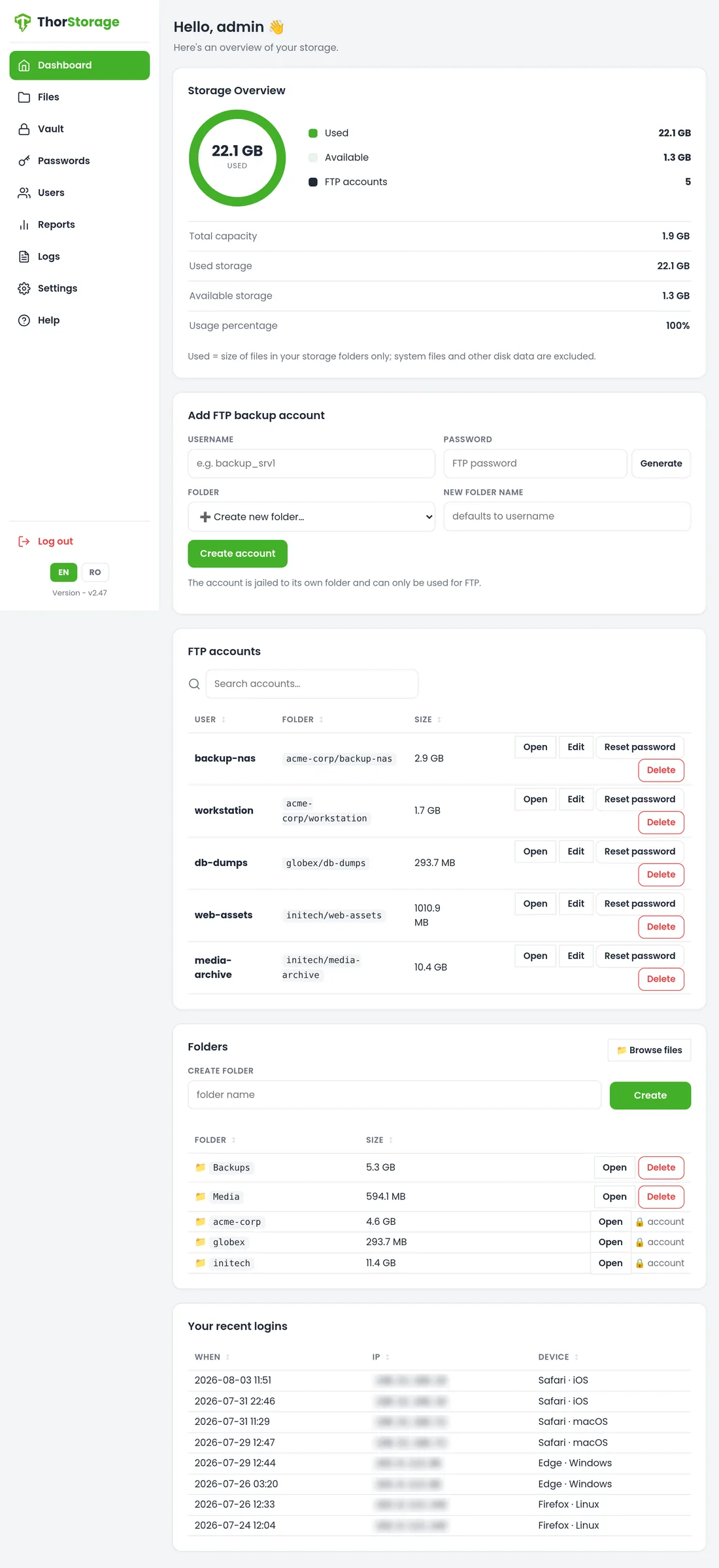
Your home screen shows a storage overview (space used vs available and how many FTP accounts exist), the list of FTP accounts with their folder and size, your folders, and your recent sign-ins.
🔑 FTP backup accounts +
On the Dashboard, add an FTP account and its private folder in one step (use Generate for a strong 12-character password). Each account row lets you reset its password or delete it. These are the accounts your backup tools log in with over FTPS.
📁 Files & folders +
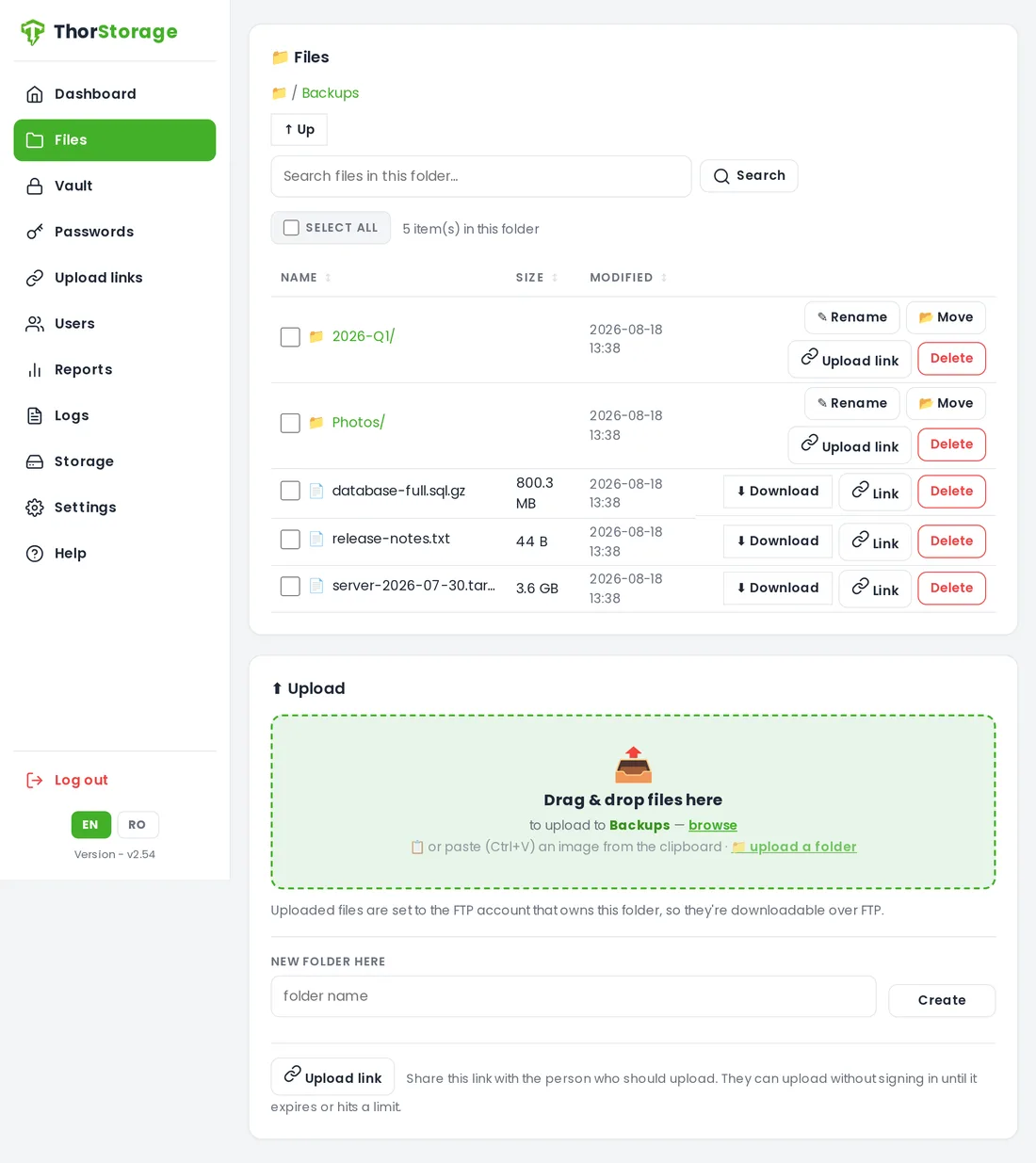
Open Files to browse. Create folders (spaces are allowed), download or preview any file, and move or delete files and folders (deletion is recursive and always asks to confirm). Click a file name to preview images, PDFs and audio in a viewer, or play a video. An FTP account's main folder is protected — it is removed only by deleting the account.
⬆️ Uploading +
Open the target folder, then upload any way you like: drag & drop files, drag & drop a whole folder (its subfolders are recreated), use "upload a folder", drop an image from another web page, or paste from the clipboard (Ctrl+V). Each file shows a progress bar with Cancel, plus Cancel all. Uploads never overwrite — a clashing name gets " (1)", " (2)" — and everything is auto-owned by the folder's FTP account, so it stays retrievable over FTP.
🔀 Moving files +
Tick the checkboxes next to files, then use "Move selected…" to move them into another folder you control — a tenant stays inside their own space; an admin can move anywhere.
📥 Upload links +
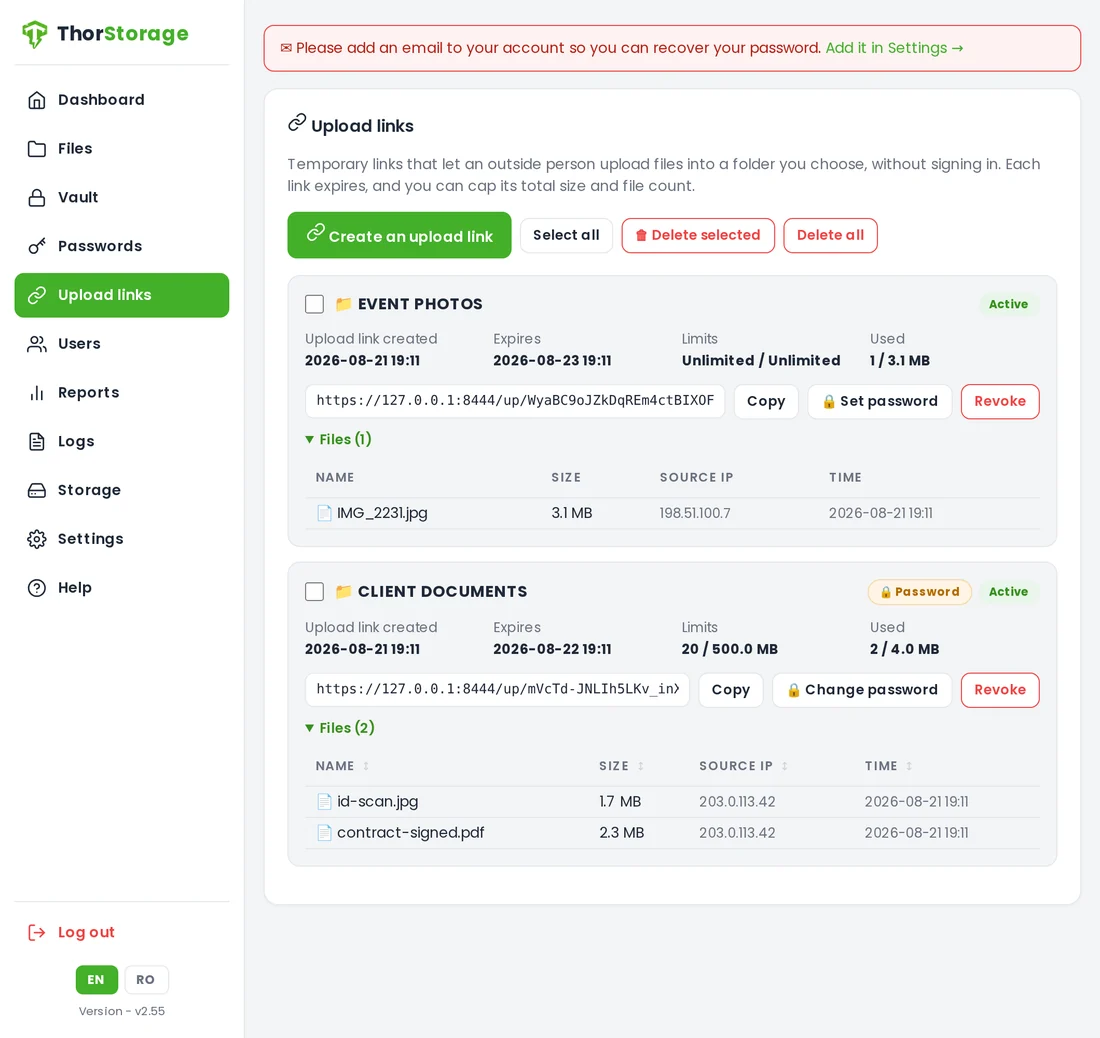
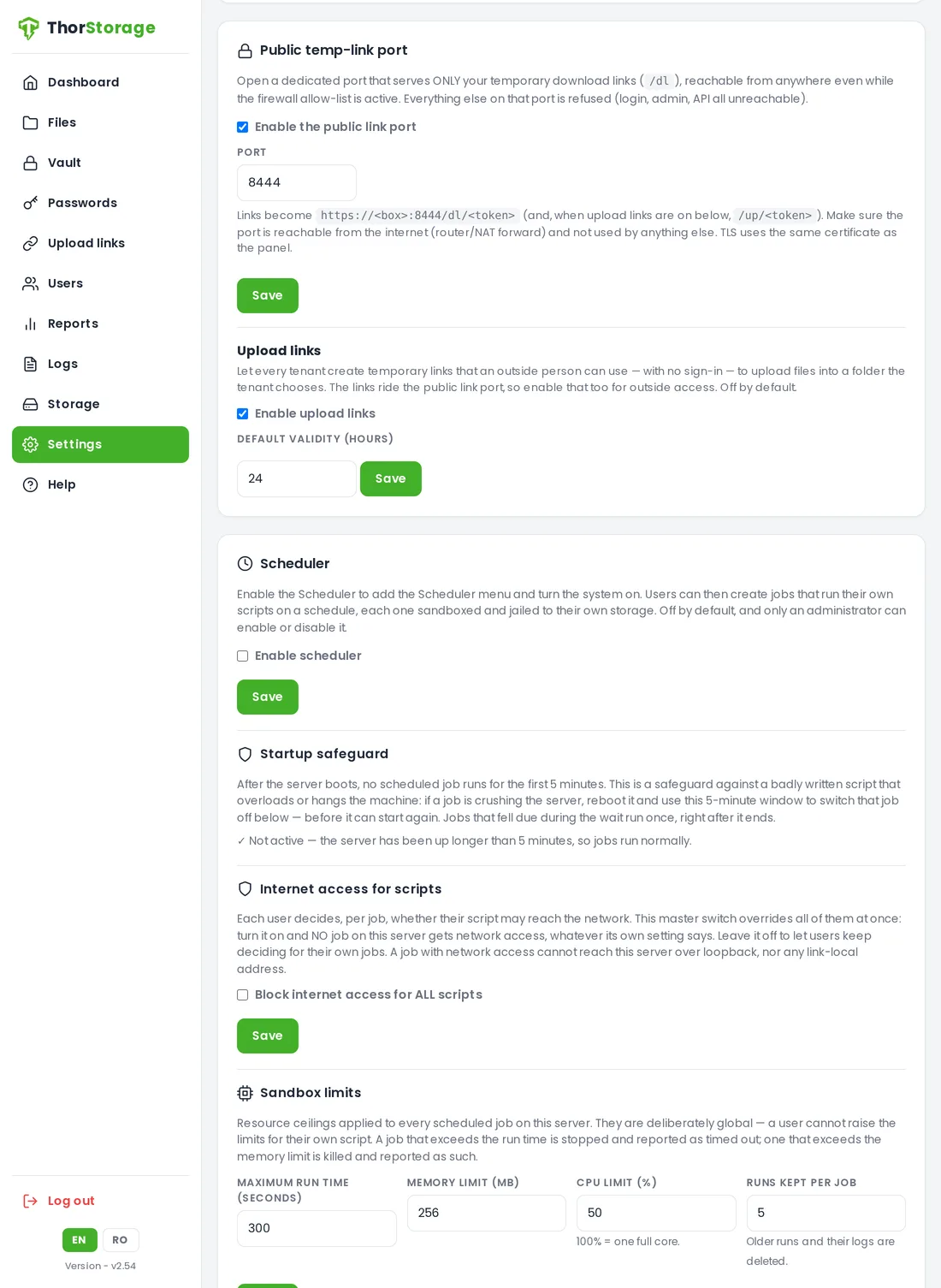
In Files, on any folder you control, click "Upload link" to create a link that lets an outside person upload files into that folder without signing in. Choose how long it stays valid (in hours, up to 48; the default comes from Settings) and, optionally, cap the total size and number of files. You can also set an optional password the person must enter before uploading (set, change, generate or remove it any time, and it never travels with the link — share it separately). Under the Upload links menu you see all your links, each showing the files received and the source IP of every upload; a link stops the moment it expires, you revoke it, or it hits a limit, and dangerous file types are refused. Enable the public link port in Settings so people outside your network can reach the links.
🔒 Vault — encrypted files +
The Vault is a private, encrypted folder inside your own space, used from the web only (never over FTP). Files you put there are encrypted on the server with a passphrase you choose — nobody, not even the server operator, can read them without it (zero-knowledge). Create it once with a strong passphrase (at least 12 characters — or press Generate to make one) and store that key somewhere safe. Unlock it to upload (drag & drop, whole folders, paste or a dropped link), download or delete; Lock it when done. You can change the passphrase and the whole vault is re-encrypted safely — each file is re-encrypted to a new copy and only swapped in once they all succeed, so a failure leaves your data untouched. Warning: the passphrase is the only key — if you lose it the files cannot be recovered, only Reset (which permanently erases the vault).
🎬 Playing video +
Click Play to open the player (it does not autoplay — press play yourself). Choose the aspect (default 16:9; also Fit, Zoom, Stretch, 4:3), turn subtitles on/off or switch language, and — when casting — switch the audio language if the file has several. Downloading from the player is disabled.
📺 Casting to a TV (Chromecast) +
Press Cast and pick your Chromecast. A short branded intro plays in full, then your video. On the TV you can change the aspect and subtitles; the screen only shows "Playing from ThorStorage" — never the file name. Casting works from Chrome on desktop and Android, on the same network as the Chromecast.
📡 URL streaming (IPTV) +
An admin can enable URL streaming from Settings to unlock a Streaming menu. Add external stream links by name — MP4, HLS (.m3u8) or MPEG-TS (.ts), such as IPTV channels. Play a link in the browser or cast it to a Chromecast on your network. The server fetches and relays the stream, so the source URL is never exposed to the browser or the TV, and playback can only be started with a token issued by the app. Each link can be tested for reachability, edited or deleted.
🗝️ Zero-knowledge password manager +
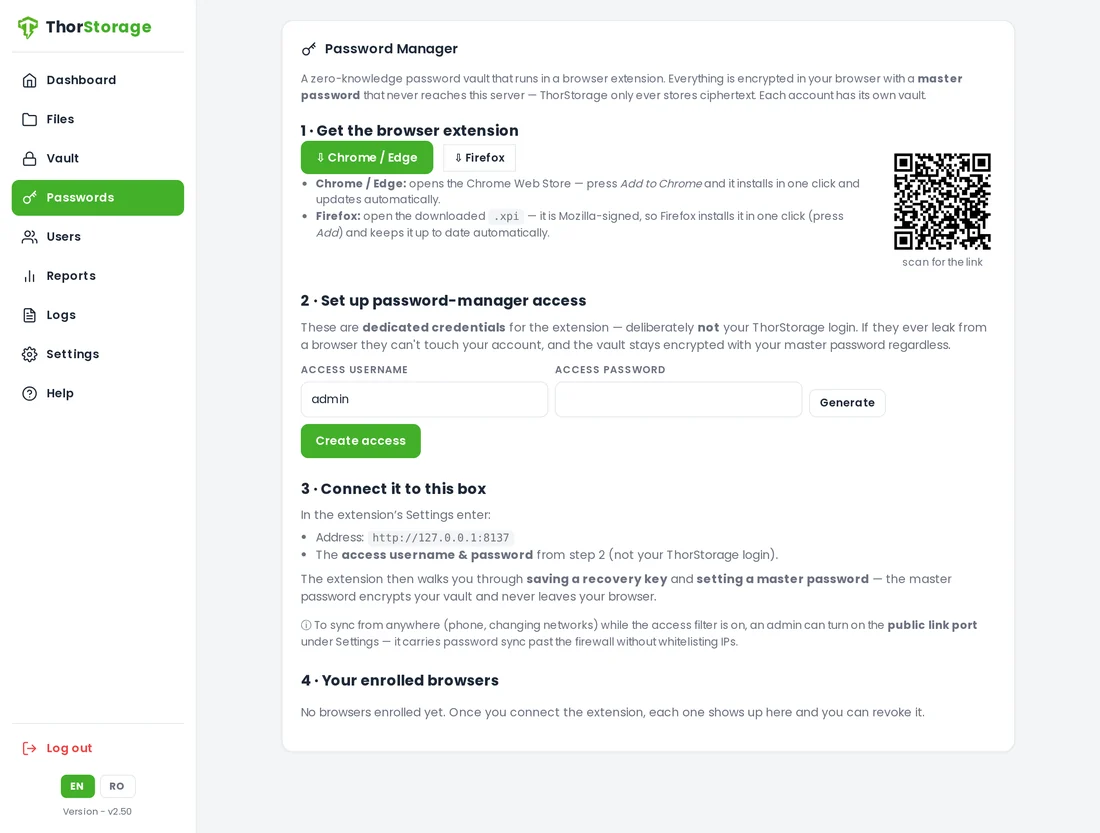
A browser extension for Chrome and Firefox keeps your website logins encrypted and syncs them to your own ThorStorage — the server only ever stores unreadable ciphertext. On the Passwords page you set up a dedicated access credential (kept separate from your ThorStorage login on purpose), download the extension, and it walks you through saving a recovery key and choosing a master password that encrypts everything in your browser and never leaves it. It then offers to save logins as you sign in, fills them back on your next visit, and can become your browser's default. Optional two-factor and passkey/biometric unlock; your enrolled browsers are listed and revocable. Without the master password and recovery key, no one — not even the server operator — can read your passwords.
👥 Tenants (admin) +
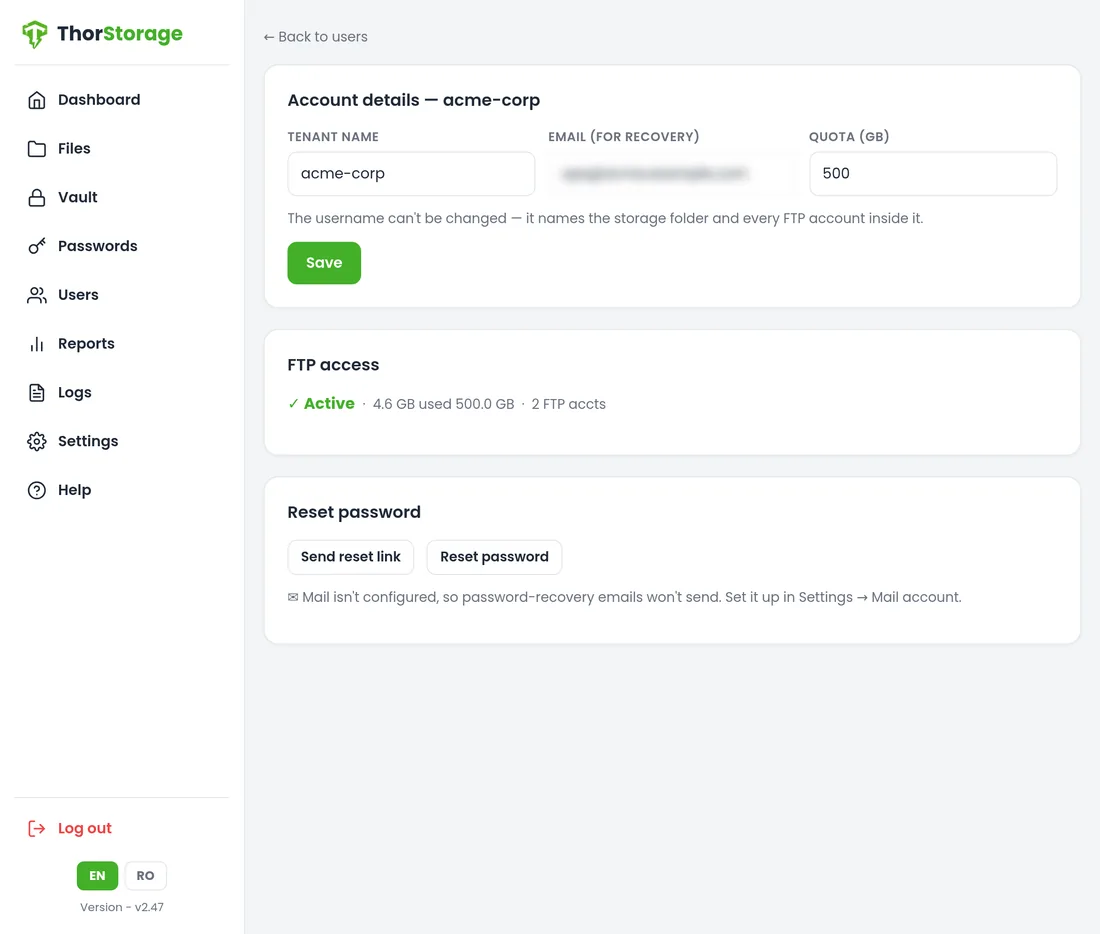
Under Users, create a tenant (a web login with its own space) with an email and a storage quota. Edit a tenant to change its recovery email or quota, email it a password-reset link or set a new password, or delete it (keeping or also erasing its data). The username cannot be changed.
📊 Disk quotas & FTP suspension +
Each tenant can have a storage quota in GB (0 = unlimited; new tenants default to 10 GB). When a tenant goes over quota, web uploads are refused and its FTP logins are suspended automatically; they are restored automatically once usage drops back under the limit. An admin or the tenant can also re-enable FTP once back under quota.
⏱️ Scheduled scripts +
An admin can enable the Scheduler to let you run your own scripts on a schedule — hourly, daily, weekly, monthly or on a cron expression. Write a short shell or Python script (or point at one in your files) for jobs like database dumps, archiving, or copying backups off-site over SSH/SFTP. Every run is sandboxed and jailed to its own space with CPU, memory and time limits, so a script can never touch another tenant's data or the system. Each job keeps its recent runs with their output, exit status and logs, and you can Run now to test it. Reaching a remote server or database needs the job's "Allow network access" box ticked; the admin keeps a master switch over network access for all scripts.
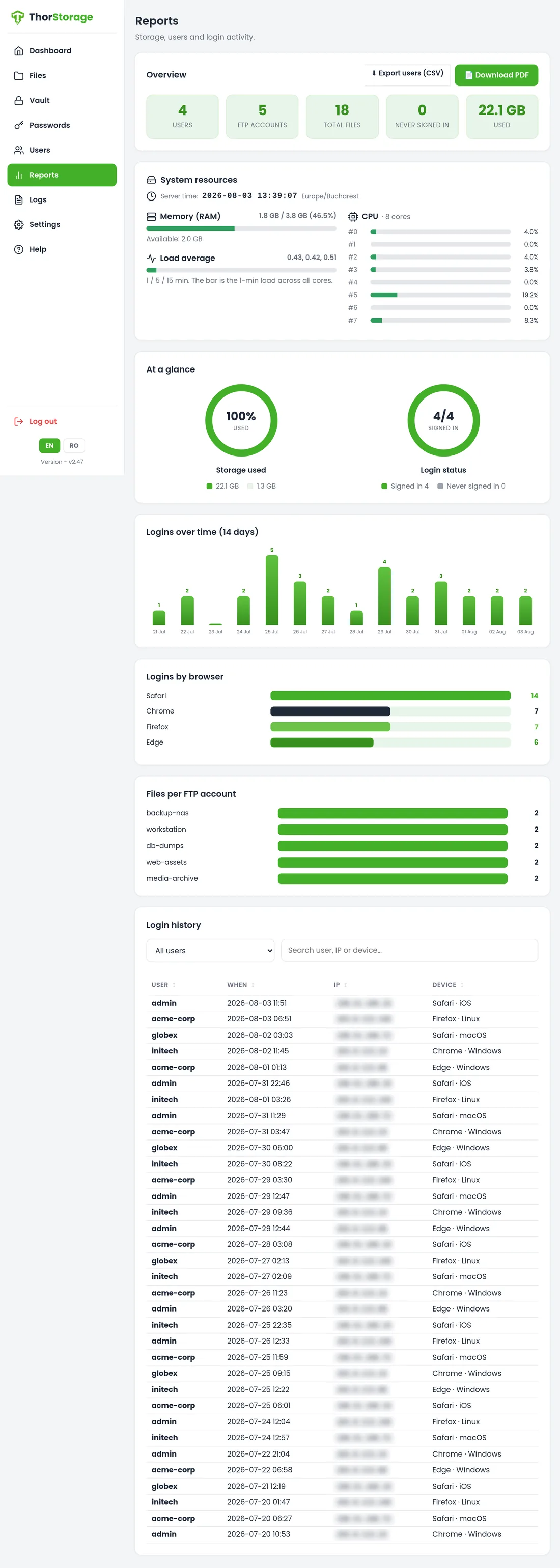
📈 Reports & logs (admin) +
Storage and sign-in statistics: capacity and usage, each user's last sign-in with IP and device, and recent sign-in history — export to CSV or PDF. A rotating diagnostic log of streaming, media access and errors can be viewed or purged; it rotates automatically at 100 MB.
🔐 Domain & HTTPS certificate +
In Settings, enter your domain and email and request a free Let's Encrypt certificate — it secures both the web admin (HTTPS) and FTP (FTPS) and renews automatically. Point the domain's DNS at this server before requesting.
🌐 Network — IP address (admin) +
In Settings you set the server's IP: a fixed (static) address or automatic (DHCP). After you apply, you confirm from the new address within 90 seconds or it reverts automatically — so a wrong setting can't lock you out. When you access the exact IP being changed you're taken to the new address automatically; through a domain or behind NAT it confirms on its own if that address stays reachable, and reminds you to point your router's port-forward at the new IP first (or confirm from inside the LAN). DNS servers and gateway are validated before anything is applied.
🔌 Connect over FTPS +
Use an FTP account's credentials with a client that supports explicit FTP over TLS in passive mode.
- Host / Server: your server address · Username: the FTP account name · Password: that account's password
- Encryption: Require explicit FTP over TLS (FTPS) · Mode: Passive
- FileZilla / WinSCP: Protocol FTP, Encryption "Require explicit FTP over TLS", Logon Type Normal, Transfer mode Passive.
- Each account is locked to its own folder. Behind NAT, forward the FTP control port and passive range and set the public address.
📱 Install on your phone +
ThorStorage installs as a Progressive Web App — full-screen from a home-screen icon, no app store. Open it over HTTPS first.
- Android (Chrome): open the HTTPS address, ⋮ menu → "Install app" / "Add to Home screen".
- iPhone / iPad (Safari): open in Safari, Share button → "Add to Home Screen".
- With a Let's Encrypt certificate there's no warning; a default self-signed cert must be accepted once.
🛡️ Security +
- FTP is encrypted: FTPS is required and unencrypted logins are refused.
- FTP accounts can only use FTP (no SSH/shell) and are locked to their own folder.
- The web admin is served over HTTPS, with sign-in throttling, CSRF protection and per-tenant isolation.
🔒 FTPS enforced🧱 Per-tenant isolation🚦 Sign-in throttling🛡️ CSRF protected